How to Style One Specific Menu Item in Squarespace (Without Breaking Your Navigation)

Squarespace makes global styling easy and targeted styling unnecessarily hard. One of the most common frustrations is wanting to visually highlight one navigation item without touching the rest of the menu.
In this example, we’re styling a single dropdown menu item so it behaves like a call-to-action: white background, coloured text and a subtle hover state. No JavaScript. No fragile nth-child selectors. Just clean, resilient CSS.
The problem with the typical position-based styling
A lot of Squarespace tutorials recommend styling menu items by position, for example “the third link in the dropdown”. That approach fails the moment you reorder the menu, add a new page or A/B test structure
This code is useful as it:
Targets the exact link, not “third item in the list”
Survives menu reordering
Survives adding/removing pages
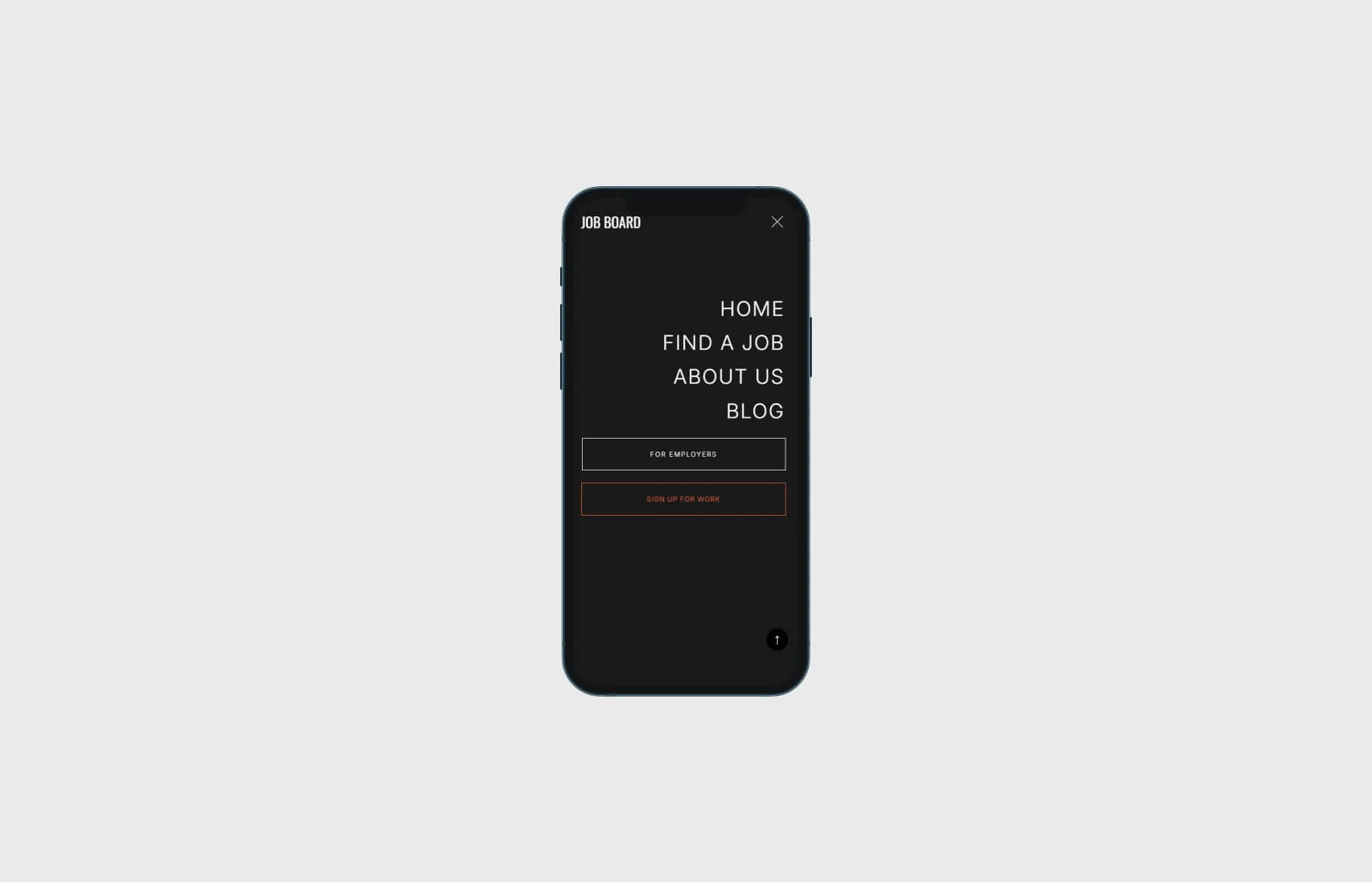
Doesn’t affect mobile nav unless you explicitly want it to
The CSS Solution
Add the following CSS to Design → Custom CSS in Squarespace and paste the following, replacing the URLs with your own:
/* Dropdown: Highlight a specific link */
.header-nav .header-nav-item a[href="/link-name-here"] {
  background-color: #ffffff;
  color: #0b5cff;
  padding: 8px 14px;
  border-radius: 4px;
}

/* Hover state */
.header-nav .header-nav-item a[href="/link-name-here"]:hover {
  background-color: #f2f6ff;
  color: #0b5cff;
}
Check out our library of code snippets and site enhancements.